AR Scan
Prompt players to scan a given object using their device's camera. When the correct target is recognised, the stage completes and the adventure continues.
Video Tutorial
What It Does
The AR Scan stage opens the device camera and waits for the player to find and point at a specific real-world image or object. When recognised, feedback confirms the find and the stage ends. Use clear images of flat objects (paintings, plaques, drawings) for best results — 3D objects require specifying which side to aim at.
Configuration Parameters
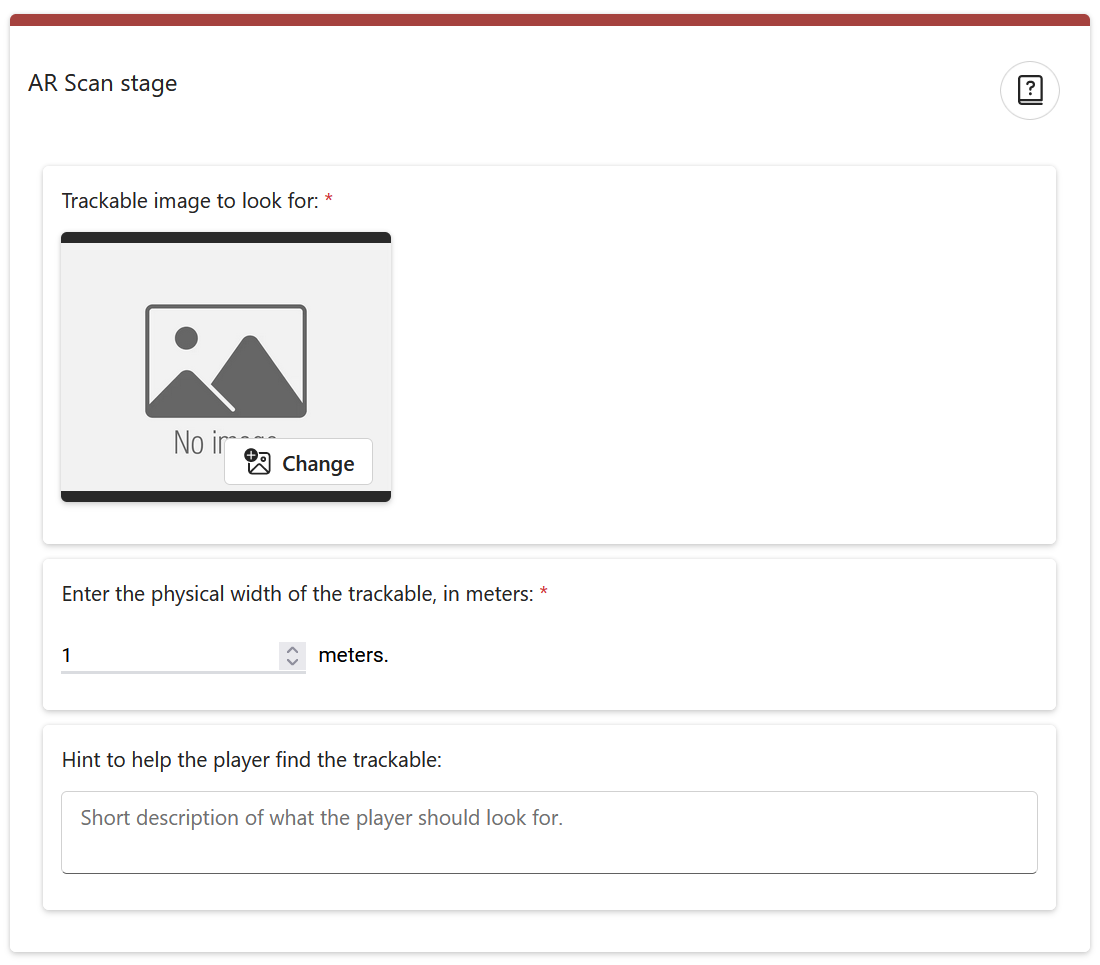
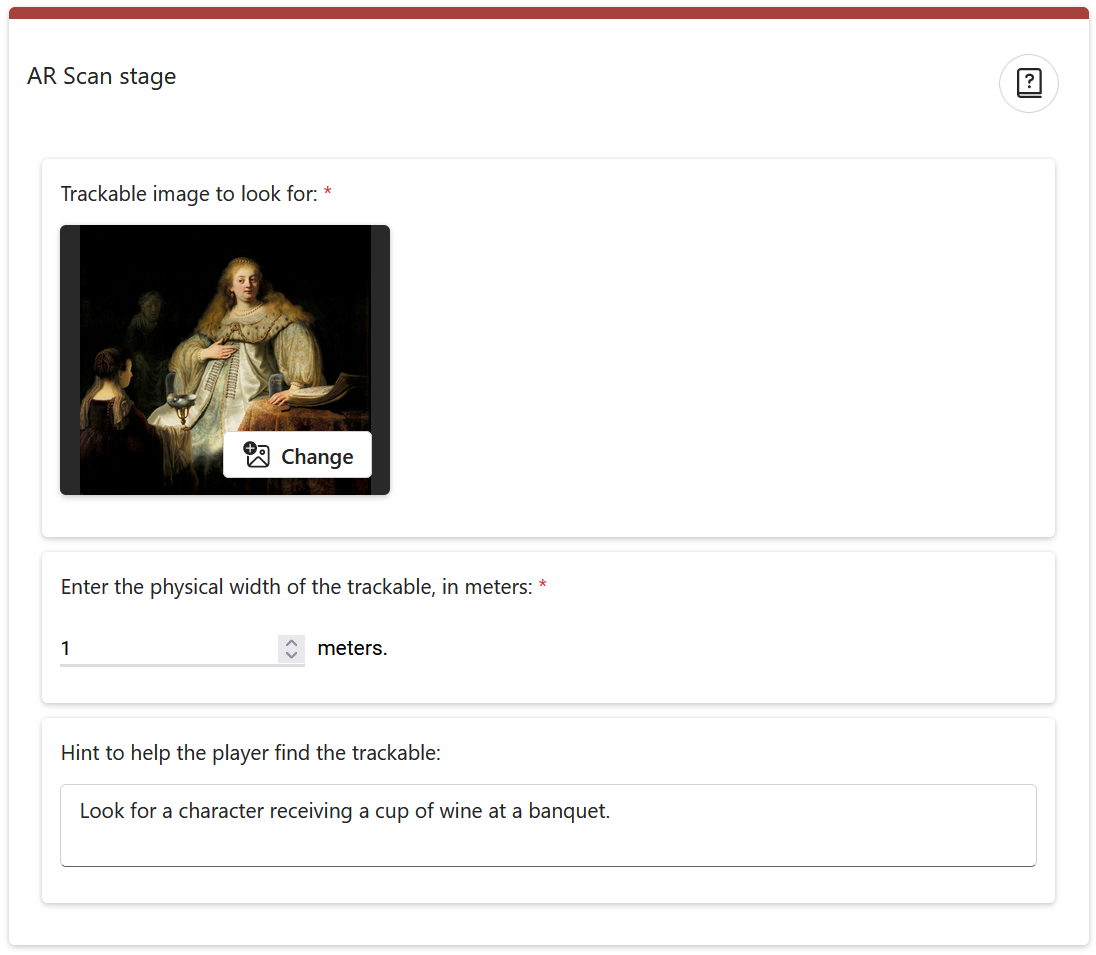
Trackable image — The image the camera must detect. Select from the resource manager (required).
Hint / riddle — Text shown to the player indicating what to search for or a riddle guiding them to the location (required).
Approximate real-world size — Optional. Helps the AR system detect the object more reliably.
Editor & Player Views